Showing posts with label Run commands. Show all posts

Hiding Hard Disk Drives without any software.

Hiding Hard Disk Drives without any software.

Sometimes you may want to hide your hard drives so that no one can access your personal data. In this post I will tell you how to hide the hard disk drives without any software by just following some simple steps.

Just follow these easy steps to hide the drives .

Step 1:- First type gpedit.msc on run and press enter.


Step 2:- Go to second option in User Configuration and expand "AdministrativeTemplates".....then Expand "Windows Components".....then Click On "Windows Explorer"


Step 3:- After Clicking on Windows Explorer check on your right there is an option "Hide These Specified drives in My Computer"

Step 4:- Open It and Select Enable, by default it is in "not Configured" Mode.


Step 5:- Choose the Drive You want to hide under "Pick one of the following combinations"....If you want to hide all just choose "Restrict all drives"....Then click Apply then Ok.

** After Ok your Selected hard drives will be hidden.

To Unhide Your Hidden Drives:-

Do same upto 3rd Step and select "Do not restrict Drives" then apply and check the "not Configure" click Ok

And You are done....!! Enjoy ...!!

NOTE: gpedit.msc may not work in windows 8.

How to Disable USB ports on Windows PC via Registry

Disable USB ports on Windows PC via Registry

With this trick, you can disable access to your USB ports on your Windows based PC to prevent people from taking your data without permission or spreading viruses through the use of USB drives.

To use this trick to disable USB ports, follow the steps given below:-

1. Click on Start.
2. Click on Run. If you cannot find RUN, type it in the search box.
3. Type "regedit" without quotes. This will launch the Registry Editor.
4. Navigate to  HKEY_LOCAL_MACHINE\SYSTEM\CurrentControlSet\Services\usbstor.
5. In the work area, double click on Start.
6. In the Value Data box, enter 4.

7. Click on OK.
8. Close Registry Editor and refresh your desktop.
9. To re-enable access to your USB ports, enter 3 in the Value Data box in Step 6.


Note: This trick also disables access to your USB connected peripheral devices. So, do not use it if you have USB connected keyboard and mouse.

If you have any queries related to any of our post, you can comment below or contact us here.
For more tips and tricks , News and more, follow us on Facebook , Twitter and G+.

How to create your own run command.

Today I am going to share an Awesome and Easy trick to Create your own run command for any application.

How to create your own run command for any application. 


You can access cmd simply by pressing WIN + R. This RUN command makes easier to access applications with a small command names and no need to search for application in application list.

Create your Own RUN Command in Windows Many commands are in built along with windows operating system. For example commands like  "notepad" for Notepad application and "regedit" for registry editor and there are many more(For more click here)

Other than inbuilt commands we can also create our own run commands easily for any application or for any folder to access them easily.

How to Create your Own RUN Command.


Step 1: Select the software for which you want to make custom Run command. For example, let us consider Mozilla Firefox. You may use any application or software other than which is already there in Run command.

Step 2: In next step Right click on the desktop and make a new Shortcut.

Step 3: As you select the Shortcut, it will open up a dialog box asking the path of the application or software for which you want to create


Step 4: Now you need to provide the path of the application's .exe file i.e. "firefox.exe". It can be found out in the C drive under Program files.

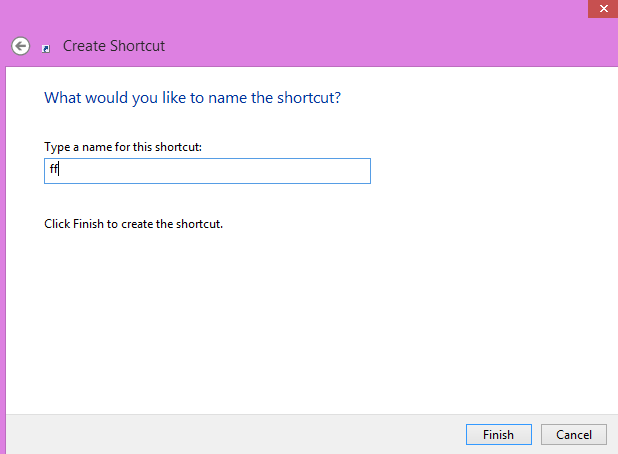
Step 5: After that just provide a relative name for the Shortcut that means rename it with the name which will be used as your Run command. For example, "ff" for Firefox.


Step 6: Now click on Finish button. Then the shortcut of respective application will be created on your desktop screen.

Step 7: In the next step just cut and paste the created Shortcut into the root drive i.e. C:/Windows/. For this make sure you are the administrator of the computer.

Step 8: Now, you are done with the process of creating the Run command and you can Open Run Command and type "ff" to open Mozilla Firefox application.


Similarly you can perform above steps to Create Run Command for various other Programs too.And If u have any problem related to any of my posts U can comment below.

And If you want me to write a Particular article of your choice then you can Contact me anytime with the topic and i will try to publish it here on this blog soon..And dont forget to Follow us on Facebook , Twitter and G+ to get updates.

Important Run commands.

Important run commands.


The top ten most used run commands are listed below:
>>Press Windows key + R to open run window.
Also Read:How to use your smartphone as webcam.

ipconfig – Quickly Find Your IP Address

You can find your IP address from the Control Panel, but this takes quite a few clicks. The ipconfig command is a fast way of determining your computer’s IP address and other information, such as the address of its default gateway — useful if you want to know the IP address of your router’s web interface.

To use the command, just type ipconfig into a Command Prompt window. You’ll see a list of all the network connections your computer is using. Look under Wireless LAN adapter if you’re connected to Wi-Fi or Ethernet adapter Local Area Connection if you’re connected to a wired network.

Flushdns – Flush Your DNS Resolver Cache

If you change your DNS server, the effects won’t necessarily take place immediately. Windows uses a cache that remembers DNS responses it’s received, saving time when you access the same addresses again in the future.

To ensure Windows is getting addresses from the new DNS servers instead of using old, cached entries, run the ipconfig /flushdns command after changing your DNS server.


ping, tracert – Troubleshoot Network Connection Issues

If you’re experiencing issues connecting to a website or other network connection issues, Windows and other operating systems have some standard tools you can use to identify problems.

First, there’s the ping command. Type ping google.com and Windows will send packets to Google.com. Google will respond and let you know it’s received them. You’ll be able to see if any packets didn’t make it to Google.com — perhaps you’re experiencing packet loss — and how long it took you to hear back — perhaps the network is saturated and packets are taking a while to reach their destinations.


There’s also the tracert command, which traces the route it takes for a packet to reach a destination. For example, run tracert google.com and you’ll see the path your packet takes to reach Google. If you’re having issues connecting to a website, tracert can show you where the problem is occurring.
                                     

shutdown – Create Shutdown Shortcuts on Windows 8

The shutdown command is particularly useful on Windows 8. You can use it to create your own shortcuts and place them on your Start screen or desktop, allowing you to more easily shut down Windows without digging through the charms bar or logging out first.

This command can also be used to restart your computer. On Windows 8, you can even use a special switch to restart your computer into the advanced startup options menu.

Shut Down: shutdown /s /t 0
Restart: shutdown /r /t 0
Restart Into Startup Options: shutdown /r /o
create-shut-down-shortcut-on-windows-8
                                      

recimg – Create Custom Recovery Images

The Refresh Your PC feature on Windows 8 allows you to restore your computer’s system state to its original state — either from a clean Windows install or as the computer came from its manufacturer. You can create your own custom recovery images, but this feature is hidden — you have to do it with the recimg command from a command line. This allows you to remove manufacturer-installed bloatware or add your favorite desktop programs to your recovery image.


sfc /scannow – Scan System Files for Problems

Windows includes a system file checker tool that scans its system files and looks for problems. If system files are missing or corrupted, the system file checker will repair them. This may fix problems with some Windows systems.

To use this tool, open a Command Prompt window as Administrator and run the sfc /scannow command.


telnet – Connect to Telnet Servers

The telnet client isn’t installed by default. You’ll have to install it from the Control Panel. Once installed, you can use the telnet command to connect to telnet servers without installing any third-party software.

You should avoid using telnet if you can help it, but if you’re connected directly to a device and it requires that you use telnet to set something up — well, that’s what you have to do.


cipher – Permanently Delete and Overwrite a Directory

The cipher command is mostly used for managing encryption, but it also has an option that will write garbage data to a drive, clearing its free space and ensuring no deleted file can be recovered. Deleted files normally stick around on disk unless you’re using a solid state drive. The cipher command effectively allows you to “wipe” a drive without installing any third-party tools.

To use the command, specify the drive you want to wipe like so:

ciper /w:C:\


netstat -an – List Network Connections and Ports

The netstat command is particularly useful, displaying all sorts of network statistics when used with its various options. One of the most interesting variants of netstat is netstat -an, which will display a list of all open network connections on their computer, along with the port they’re using and the foreign IP address they’re connected to.

This isn’t a comprehensive list of all the commands you might find useful, but we hope it’s given you some idea of the many powerful tools lurking under the surface. Linux isn’t the only operating system where users can benefit from learning some commands.


If you have any queries related to any of our post, you can comment below or contact us here.
For more, follow us on Facebook , Twitter and G+.
Keep visiting Hackersfall.
Powered by Blogger.

Follow Us On Twitter

Contact Form

Name

Email *

Message *


© 2013 HackersFall. All rights resevered. Designed by Templateism

Back To Top